How do I switch between workflows in my app with the Flutter Workflow Editor?
Last updated: July 27, 2026
Context
If your app was configured using Codemagic’s Flutter Workflow Editor and has multiple workflows, you can choose which workflow to view, edit, or run.
The workflow named Default Workflow is usually the original workflow created for the app.
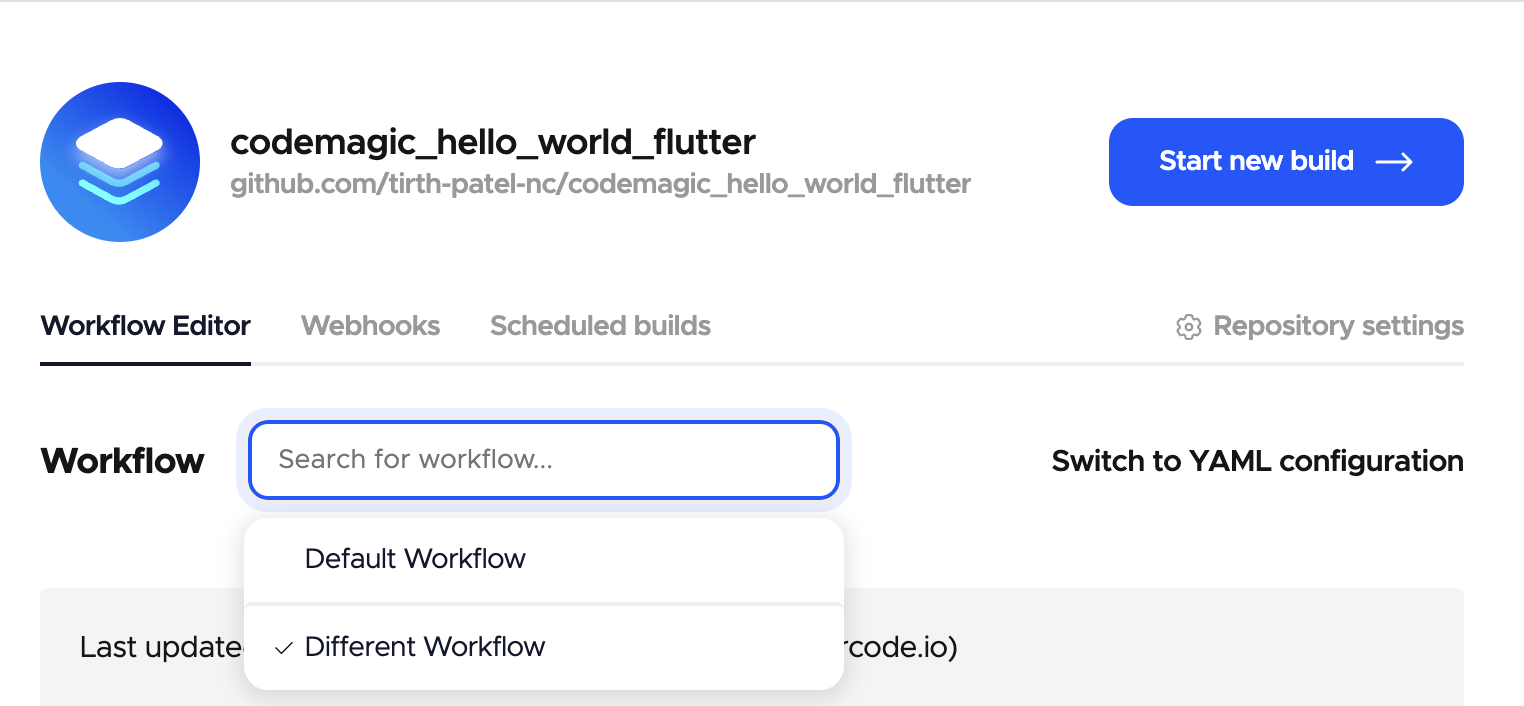
Switching workflows in App Settings
Open the app in Codemagic.
Go to App settings.
Click the current workflow name displayed below the app name.
Select Default Workflow or another workflow from the dropdown.
The settings page will then display the configuration for the selected workflow.
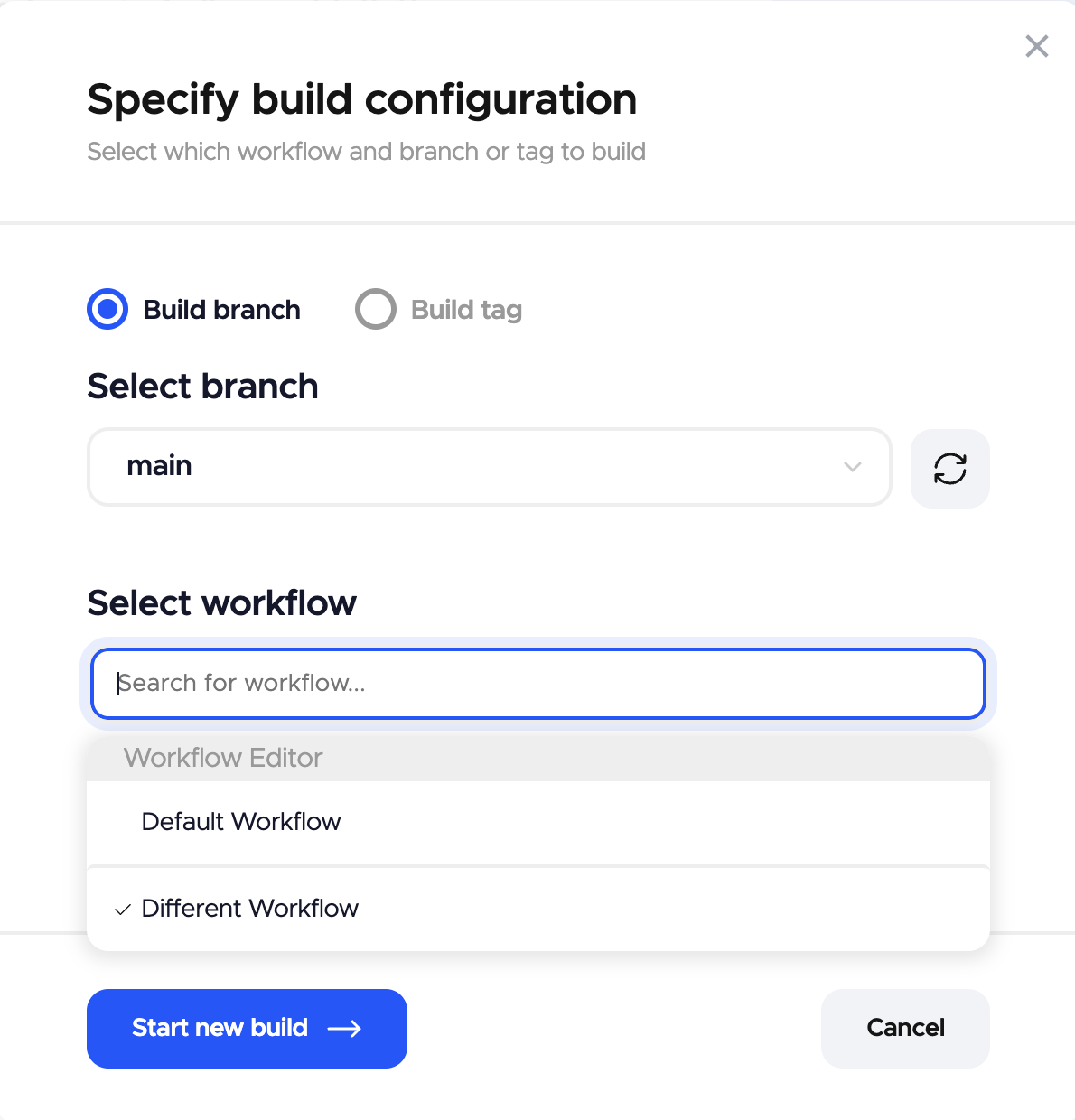
Selecting a workflow when starting a build
Click Start new build.
Select the branch you want to build.
Choose Default Workflow or another available workflow.
Start the build.
Note: These instructions apply to apps configured with the Flutter Workflow Editor.
For apps configured using codemagic.yaml, workflows are defined under the workflows section of the YAML file. You choose one of those workflows when starting a build rather than switching to a workflow named Default Workflow.