Why am I getting "Not uploaded" error in the Code Signing Identities dashboard and "No matching certificate found for every requested profile" when starting builds?
Last updated: August 25, 2026
Context
After uploading your provisioning profile in the team settings under the code signing identities section, you may notice a red cross saying ❌ Not uploaded
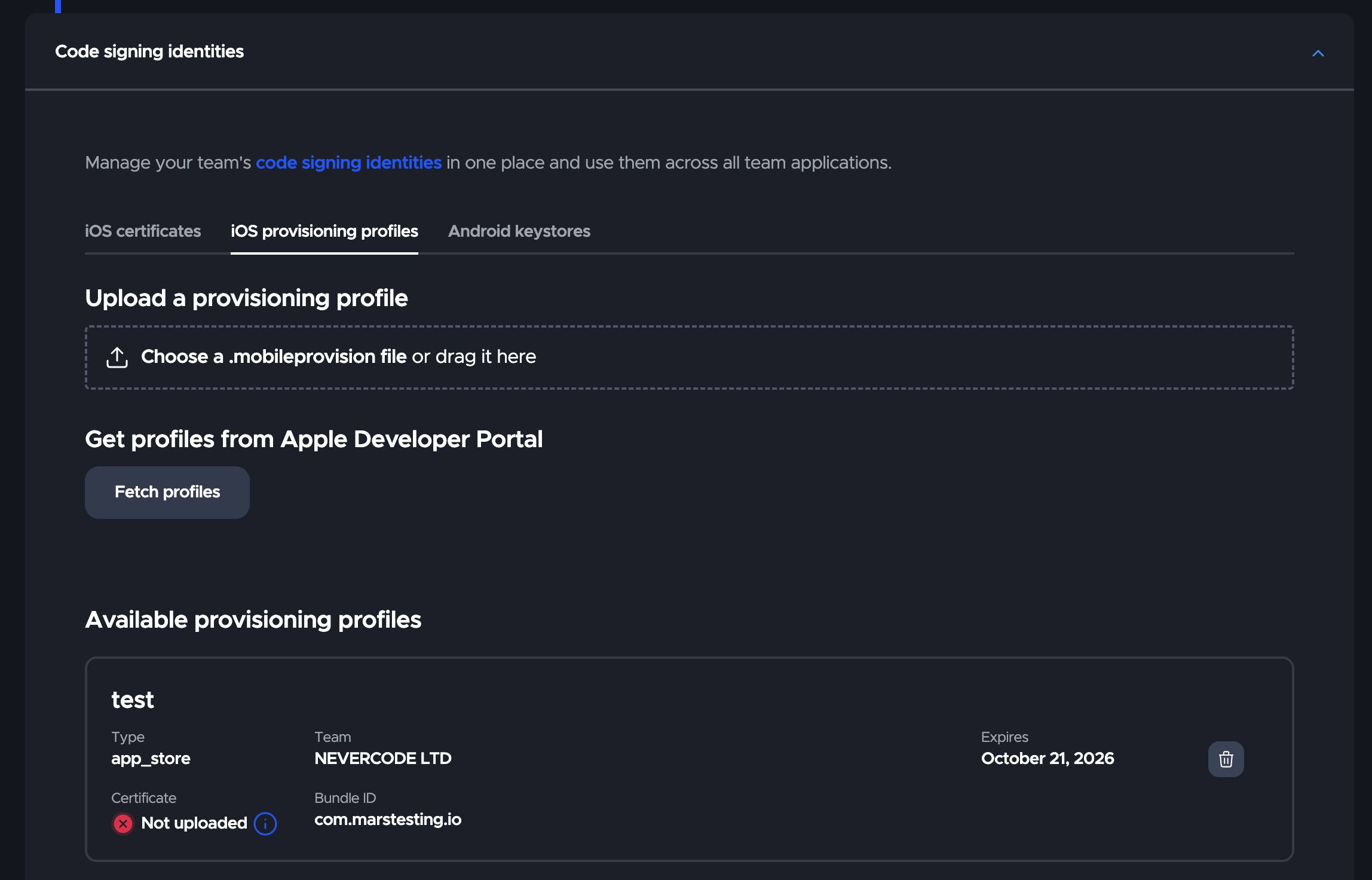
This will cause a build error as shown below:

Answer
This error is caused by a mismatch between the distribution certificate uploaded to Codemagic under the iOS certificate tab and the certificate included in your provisioning profile. In other words, it means the certificate currently uploaded to Codemagic is not the one included in that provisioning profile.
To resolve this, follow these steps:
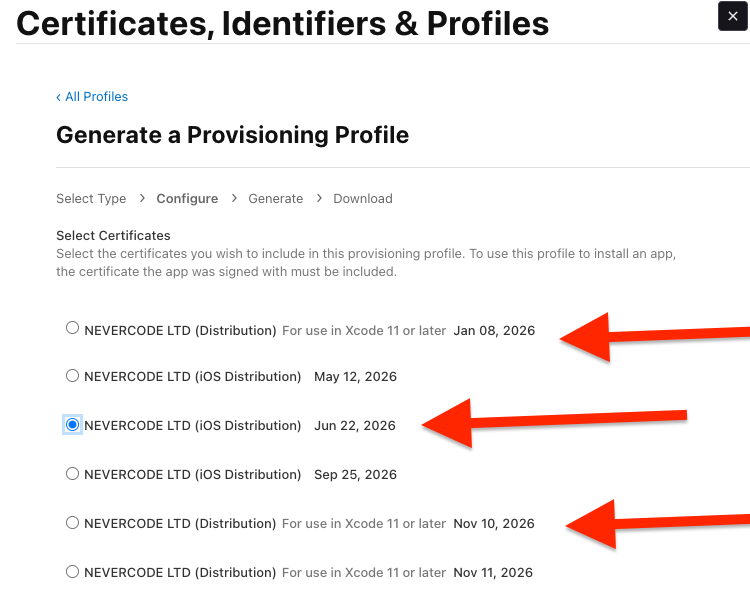
Go to the Apple Developer Portal → Profiles and open the provisioning profile in question.
Check which distribution certificate is included in the profile.
If you have multiple certificates with the same name, use the expiration date to identify the correct one — match it to the certificate you have uploaded in Codemagic.
If the wrong certificate is included in the profile, edit the profile in the Apple Developer Portal to include the correct certificate, then re-download and re-upload the profile to Codemagic.
Alternatively, upload the matching certificate to Codemagic if you have not done so already.
Once the correct certificate is in place, a green checkmark ✅ will appear next to the provisioning profile, and then your next builds should proceed successfully.