How do I set a different Java version in the build environment?
Last updated: July 27, 2026
Context
Different projects require different Java versions. For example:
Android Gradle Plugin 8+ often requires Java 17
Some older projects may still depend on Java 11
Newer tooling or experimental builds may use Java 21
Codemagic build machines come with a default Java version preinstalled, but you can override it per workflow if needed.
If no Java version is explicitly set, Codemagic will automatically use the default Java version available on the build machine.
☕ Available Java versions on Codemagic machines
Codemagic provides multiple JDK versions preinstalled on macOS build machines:
Version | Path |
|---|---|
26.0.1 | /Library/Java/JavaVirtualMachines/zulu-26.jdk/Contents/Home |
21.0.11 | /Library/Java/JavaVirtualMachines/zulu-21.jdk/Contents/Home |
17.0.19 (default) | /Library/Java/JavaVirtualMachines/zulu-17.jdk/Contents/Home |
11.0.31 | /Library/Java/JavaVirtualMachines/zulu-11.jdk/Contents/Home |
1.8.0_492 | /Library/Java/JavaVirtualMachines/zulu-8.jdk/Contents/Home |
1.7.0_352 | /Library/Java/JavaVirtualMachines/zulu-7.jdk/Contents/Home |
👉 You can choose the appropriate version based on your project requirements.
How to change Java version using Workflow editor?
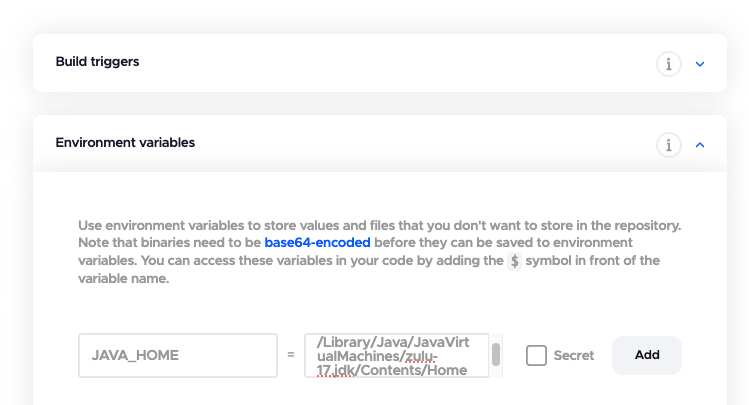
You can override the default Java version by setting the JAVA_HOME environment variable.
Steps:
Open your workflow in Codemagic
Go to Environment variables
Add a new variable:
JAVA_HOME=/Library/Java/JavaVirtualMachines/zulu-26.jdk/Contents/HomeSave the workflow and run the build
How to change Java version using codemagic.yaml?
Codemagic provides a built-in way to select the Java version using the java field inside the environment section.
You do not need to manually set JAVA_HOME when using this approach.
    android-workflow:
        name: Android Workflow
        max_build_duration: 120
        instance_type: mac_mini_m2
        environment:
          java: 26