Why is the Quick Launch button not showing on my build page for the App Preview simulator?
Last updated: August 31, 2026
Context
After following the documentation to run an iOS or Android app on the simulator, some users may find that the Quick Launch button does not appear on the build page. This button is used to trigger the App Preview feature, which lets you run your app directly in a simulator.
Answer
The Quick Launch button only appears when your build produces a compatible artifact. Specifically, you need to build:
An .app file for iOS (built using the iPhone Simulator SDK)
An .apk file for Android
If your build does not generate one of these file types, the Quick Launch button will not be shown. Use the workflow configurations below to produce the correct artifacts.
iOS – Build for Simulator (.app):
workflows:
  simulator-workflow:
    name: Build for simulator
    environment:
      xcode: latest
    scripts:
      - name: Build with Generic Destination
        script: |
          xcodebuild build \
            -project "yourproject.xcodeproj" \
            -scheme "yourscheme" \
            -sdk iphonesimulator \
            -configuration Debug
    artifacts:
      - /Users/builder/Library/Developer/Xcode/DerivedData/**/*.app
Flutter - Build for Simulator (.app)
workflows:
  flutter-ios-simulator:
    name: Flutter iOS Simulator
    environment:
      xcode: latest
    scripts:
      - flutter build ios --simulator
    artifacts:
      - build/ios/iphonesimulator/Runner.app
With the Workflow Editor for Flutter iOS apps, follow these steps:
In the Build section, set the Mode to Debug.
In the Build arguments field, add
--simulatornext to the iOS--debugsection.On a successful build, you will see the Quick Launch button available next to the
.appartifact in the build overview.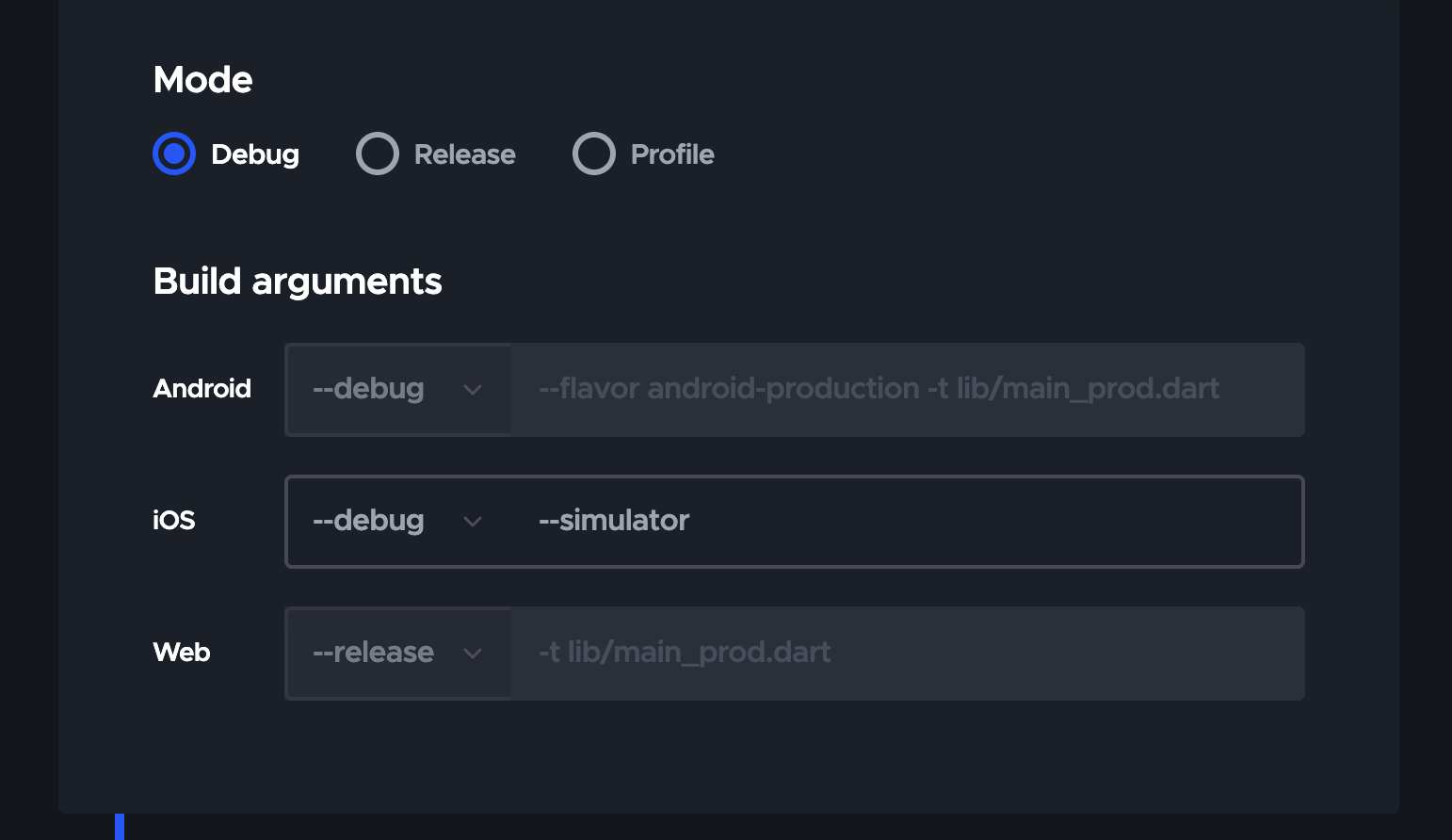
Android – Build Debug APK (.apk):
workflows:
  android:
    name: Android debug workflow
    scripts:
      - name: Set Android SDK location
        script: |
          echo "sdk.dir=$ANDROID_SDK_ROOT" > "$CM_BUILD_DIR/local.properties"
      - name: Build Android
        script: |
          ./gradlew assembleDebug
    artifacts:
      - app/build/outputs/apk/debug/app-debug.apk
Once your build completes and the correct artifact is generated, the Quick Launch button will appear on the build page, allowing you to launch the App Preview.